You plug your iPhone into the charger, but nothing happens.
Maybe the battery percentage doesn’t increase, the charging symbol keeps appearing and disappearing, or your iPhone charges much more slowly than it used to.
Before assuming you need a new battery or iPhone, there are several simple things worth checking.
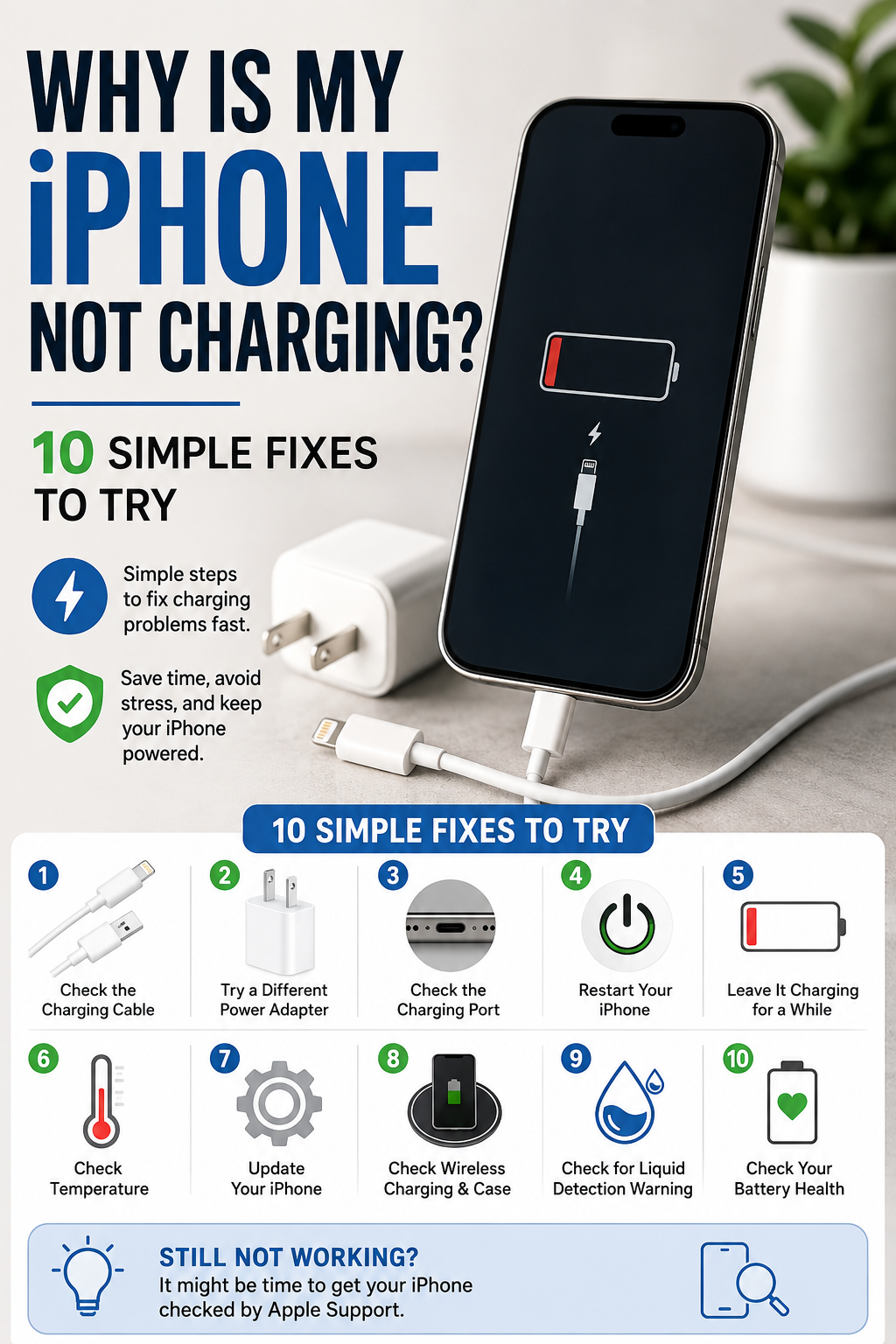
Here are 10 simple fixes to try when your iPhone isn’t charging properly.
1. Check the Charging Cable
Start with the simplest possibility: the cable.
Charging cables can become damaged over time, especially near the connectors.
Look for:
- Frayed or exposed wires
- Bent connectors
- Loose connections
- Damage near either end of the cable
Even if the cable looks fine, it may still have an internal problem.
If possible, try another compatible charging cable that you know works.
If your iPhone starts charging normally, you’ve probably found the problem.
2. Try a Different Power Adapter
The cable isn’t the only part that can fail.
The power adapter—the part that plugs into the wall—can also develop problems.
Try connecting your cable to another compatible adapter.
You can also try another wall outlet.
If you normally charge from a computer’s USB port, try a wall charger instead.
This helps determine whether the problem is your iPhone or the power source.
3. Check the Charging Port
Your iPhone spends a lot of time in pockets, bags and purses.
Over time, lint and debris can collect inside the charging port.
This may prevent the cable from making a proper connection.
Use a flashlight to look inside the port.
If you see debris, don’t push metal objects into the charging port. You could damage the small contacts inside.
If you’re uncomfortable cleaning the port yourself, an Apple Store or qualified repair technician can inspect it safely.
4. Restart Your iPhone
Sometimes the charging problem is related to software rather than the charger.
A simple restart can clear temporary software issues.
Turn your iPhone off, wait a few seconds, and turn it back on.
Then reconnect the charger.
Check whether the battery charging symbol appears.
5. Leave the iPhone Charging for a While
If the battery is completely drained, your iPhone may not turn on immediately after you connect the charger.
Plug it into a working charger and leave it connected for at least 30 minutes.
You may initially see a low-battery symbol instead of the normal Lock Screen.
Give the phone some time before assuming the charger isn’t working.
6. Check If Your iPhone Is Too Hot or Too Cold
iPhones have temperature protections built in.
If your iPhone becomes unusually hot or cold, charging may slow down or temporarily stop.
For example, this can happen if your phone has been:
- Left inside a hot car
- Sitting in direct sunlight
- Used heavily while charging
- Exposed to very cold temperatures
Move the iPhone to a comfortable room-temperature environment and allow it to return to a normal temperature.
Then try charging again.
Don’t try to cool an overheated iPhone rapidly by placing it in a refrigerator or freezer.
7. Update Your iPhone
Software updates can fix bugs and other problems affecting your iPhone.
To check for an update:
Settings → General → Software Update
If an update is available, follow the instructions to install it.
Make sure you have a backup of important information and sufficient battery power before updating.
After the update, reconnect your charger and see whether charging improves.
8. If Wireless Charging Isn’t Working, Remove the Case
If you’re using a wireless charger, the problem may be the phone’s position or case rather than the battery.
Remove the case temporarily and place the iPhone back on the charger.
Make sure the phone is positioned correctly on the charging surface.
Also remove objects that may be between the phone and charger, especially:
- Cards
- Coins
- Keys
- Magnetic accessories that aren’t designed for the charger
If possible, test the iPhone with another compatible wireless charger.
9. Check for a Liquid Detection Warning
Some iPhones can warn you when liquid is detected in the charging connector or cable.
If you see a liquid-detection warning, don’t repeatedly reconnect the cable trying to force the phone to charge.
Disconnect the cable and allow the iPhone and connector to dry.
Don’t insert cotton swabs, paper towels or other objects into the charging port.
Also avoid using external heat or compressed air to dry the connector.
Follow Apple’s instructions if a liquid-detection warning appears.
10. Check Your Battery Health
If your iPhone is several years old and charging problems happen frequently, the battery itself may be aging.
Depending on your iPhone and iOS version, you can find battery information under:
Settings → Battery → Battery Health & Charging
The wording may vary slightly depending on your iPhone.
Look for information about battery health and any messages recommending service.
If you want to understand other battery problems, see our guide:
Why Is My iPhone Battery Draining So Fast? 10 Simple Fixes
Why Does My iPhone Say It’s Charging but the Percentage Isn’t Going Up?
Sometimes the charging symbol appears even though the battery percentage barely increases.
Possible causes include:
- A weak or damaged charger
- Heavy phone use while charging
- High temperatures
- Apps using significant power
- An aging battery
Stop using the iPhone for a while and leave it connected to a reliable charger.
If the battery percentage starts increasing normally, the phone may simply have been consuming power almost as quickly as it was receiving it.
Why Does My iPhone Stop Charging at 80%?
This doesn’t always mean something is wrong.
iPhones include battery-management features that can delay or limit charging under certain conditions to help reduce battery aging.
Charging can also be affected when the iPhone becomes too warm.
If your iPhone regularly stops around 80%, check:
Settings → Battery
Then review the charging and battery-health options available on your model.
Why Is My iPhone Charging So Slowly?
Slow charging can happen for several reasons.
Check whether you’re:
- Using an older or low-powered charger
- Charging through a computer
- Using the iPhone heavily while it charges
- Charging in a hot environment
- Using a damaged cable or adapter
Trying another compatible cable and power adapter is one of the easiest ways to narrow down the cause.
What If My iPhone Only Charges When I Move the Cable?
That’s a strong sign that something isn’t making a reliable connection.
The problem could be:
- The cable
- Debris inside the charging port
- Damage to the charging connector
Try another cable first.
If multiple cables behave the same way, have the charging port inspected rather than repeatedly moving or forcing the connector.
When Should I Get My iPhone Checked?
Consider having the iPhone inspected if:
- Multiple known-working chargers don’t work
- The charging port appears damaged
- The phone repeatedly connects and disconnects
- The battery is swollen
- The iPhone becomes unusually hot while charging
- Battery settings recommend service
A swollen battery should not be ignored. Stop using the device and seek professional service.
The Bottom Line
If your iPhone isn’t charging, don’t immediately assume the battery is dead.
Start by checking the cable, adapter, outlet and charging port. Then restart the phone, check its temperature and software, and give a completely drained battery enough time to charge.
If several known-working chargers fail or you notice physical damage, overheating or battery swelling, it’s time to have the iPhone professionally inspected.