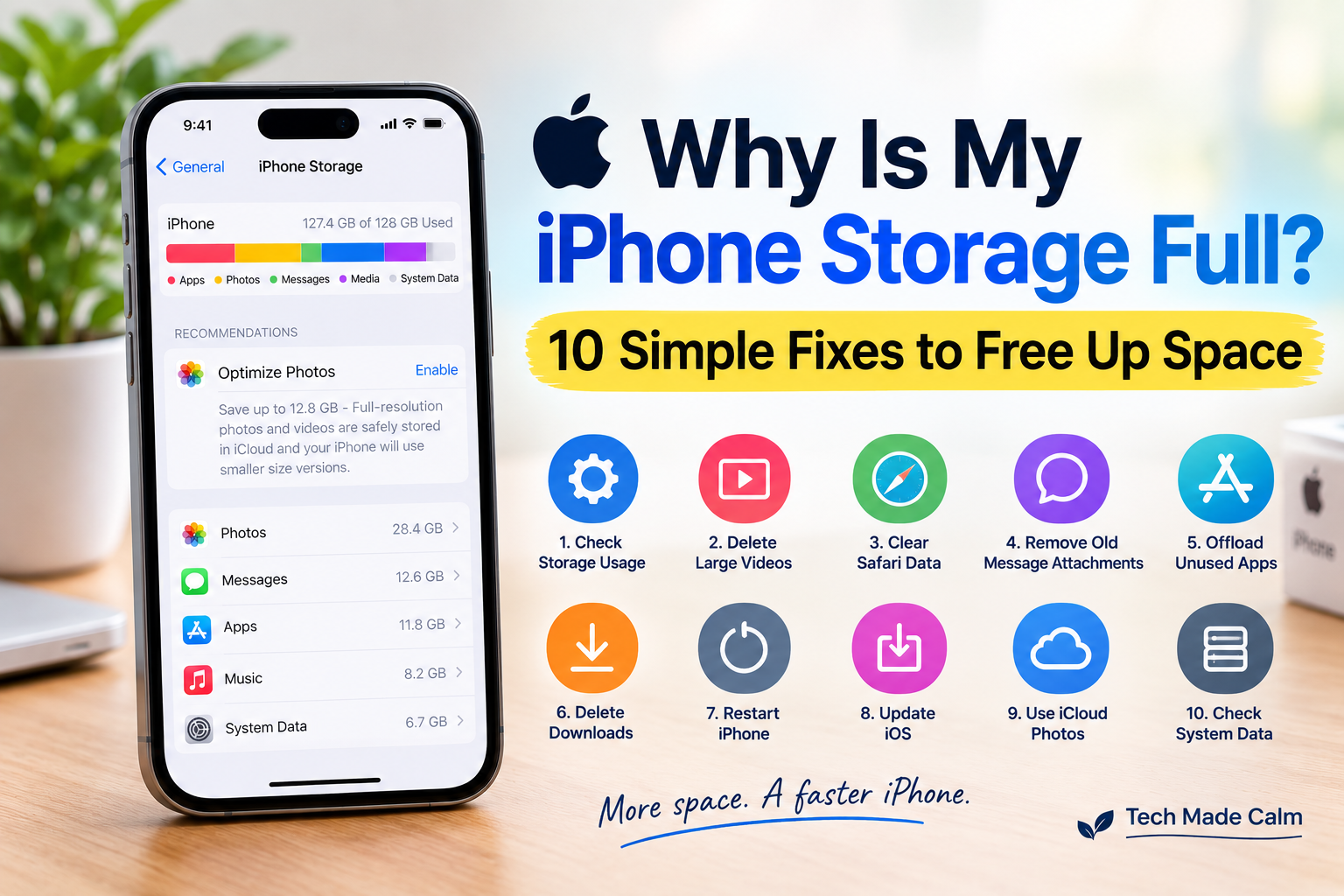
Seeing the “iPhone Storage Almost Full” message can be frustrating, especially when you have already deleted photos and apps.
The good news is that photos are not always the biggest problem. App caches, messages, downloads, and system data can quietly take up a lot of space.
Here are 10 simple ways to free up storage on your iPhone.
1. Check What Is Using Your Storage
Before deleting anything:
Settings → General → iPhone Storage
You can see exactly what is taking up space, including:
- Apps
- Photos
- Messages
- Downloads
- System Data
Apple also provides recommendations to save space.
2. Delete Large Videos
Videos use much more space than photos.
Check:
Photos → Albums → Videos
Delete:
- Old videos
- Duplicate clips
- Large screen recordings
Even a few 4K videos can free several gigabytes.
3. Clear Safari Data
Safari stores website files and cache.
Go to:
Settings → Apps → Safari → Clear History and Website Data
This can free extra storage.
4. Remove Old Message Attachments
Photos and videos inside Messages often use hidden storage.
Go to:
Settings → General → iPhone Storage → Messages
Delete:
- Large attachments
- Old videos
- GIFs
- Unwanted photos
5. Offload Unused Apps
Offloading removes the app but keeps your data.
Go to:
Settings → General → iPhone Storage
Tap an app and choose:
Offload App
Apple recommends this option for saving space.
6. Delete Downloaded Content
Check apps such as:
- Netflix
- Spotify
- Apple Music
- YouTube
- Podcasts
Offline downloads can use several gigabytes.
7. Restart Your iPhone
Temporary files and caches may clear after a restart.
Steps:
- Turn off your iPhone
- Wait 30 seconds
- Turn it back on
8. Update iOS
Storage bugs are sometimes fixed through updates.
Go to:
Settings → General → Software Update
Install any available updates.
9. Use iCloud Photos
Enable:
Settings → Photos → Optimize iPhone Storage
This keeps smaller versions of photos on your device while originals stay in iCloud.
10. Check System Data
Sometimes System Data becomes unusually large because of cache files and updates.
If System Data is very large:
- Restart the iPhone
- Update iOS
- Clear Safari data
- Remove large app caches
Why Is My Storage Full Even After Deleting Photos?
Many users discover that:
- App caches are large
- Messages contain videos
- Streaming apps store downloads
- System Data increases over time
Hidden files are often the real cause.
The Bottom Line
If your iPhone storage is full, you usually do not need a new phone.
Checking storage, removing large files, clearing app data, and offloading unused apps can quickly free up space and improve performance.
1 thought on “Why Is My iPhone Storage Full? 10 Simple Ways to Free Up Space”