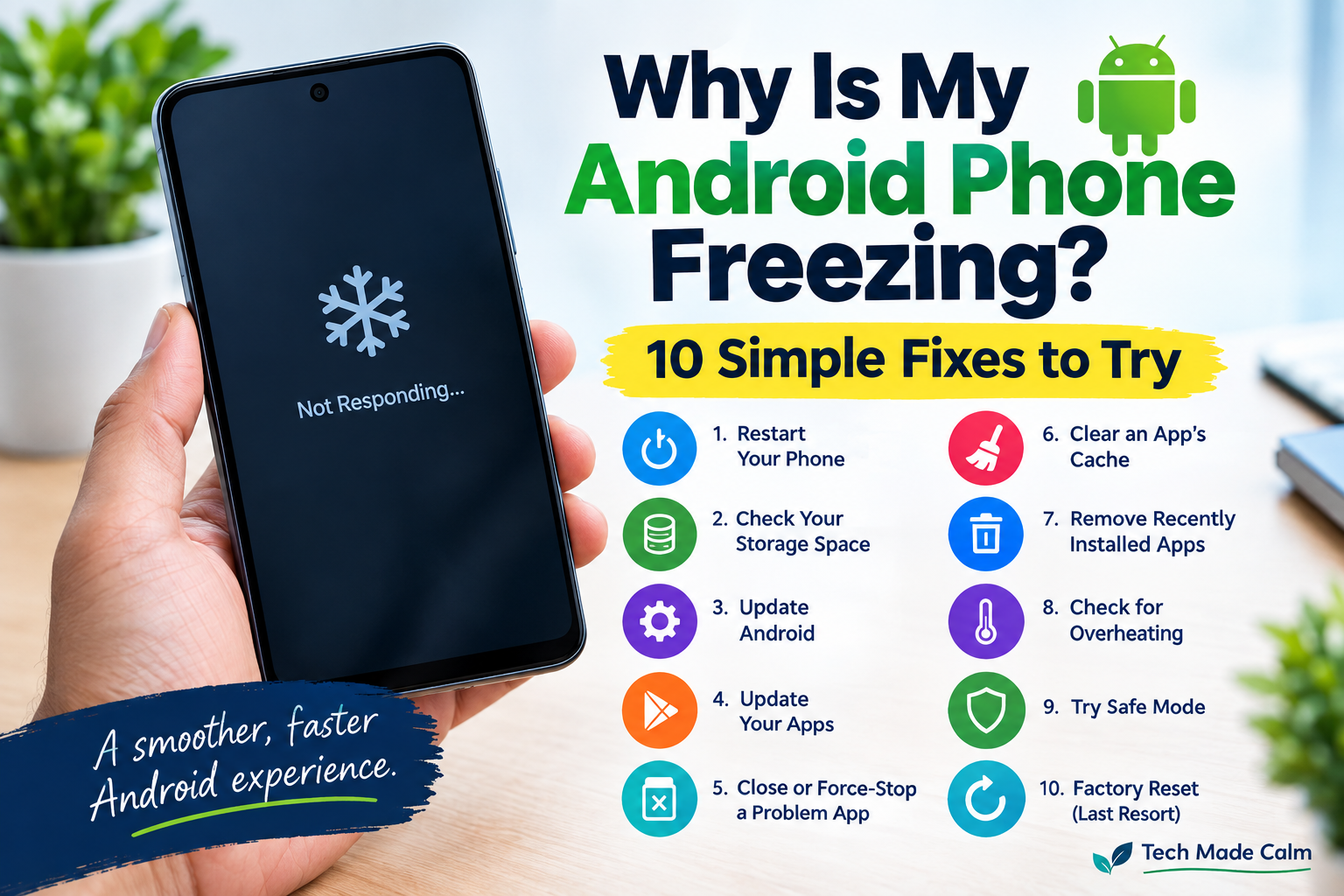
Is your Android phone freezing, becoming unresponsive, or getting stuck when you try to use it?
You may notice that the screen stops responding, apps suddenly close, or your phone takes a long time to react.
There are several possible causes, including low storage, outdated software, problematic apps, or temporary system problems.
The good news is that you can try several simple fixes before considering a factory reset.
Here are 10 things to try.
1. Restart Your Android Phone
Start with the simplest solution.
If your phone is still responding:
- Press and hold the power button.
- Tap Restart.
- Wait for the phone to turn back on.
If the screen is completely frozen, Google says you can usually hold the power button for about 30 seconds until the phone restarts.
A restart can clear temporary problems and give the phone a fresh start.
2. Check Your Storage Space
Low storage can cause Android phones to experience problems.
Open:
Settings → Storage
The exact menu can vary depending on your phone.
Google says an Android phone can start having problems when less than 10% of its storage is free.
If you’re almost out of space, consider removing:
- Old videos
- Downloaded files
- Apps you don’t use
- Duplicate photos
- Offline music and videos
Try to leave some free space rather than filling the phone completely.
3. Update Android
An outdated version of Android can sometimes cause problems.
Check for an update:
Settings → System → Software update
The exact location can vary between Samsung, Google Pixel, Motorola and other Android phones.
If an update is available, install it and restart your phone afterward.
Google recommends checking for Android updates when troubleshooting freezing and crashing problems.
4. Update Your Apps
Sometimes the problem is caused by an outdated app rather than Android itself.
Open:
Google Play Store → Profile picture → Manage apps & device
Then check for available updates.
Update your apps and see whether the freezing problem improves.
Google recommends checking app updates as part of its Android troubleshooting process.
5. Check If One App Is Causing the Problem
Does your phone freeze whenever you open a particular app?
That app may be the problem.
Try:
- Open Settings.
- Go to Apps.
- Find the problem app.
- Tap Force stop.
- Open the app again.
The exact steps vary by Android phone.
If the problem started after installing a new app, consider uninstalling that app and checking whether the phone works normally afterward.
6. Clear an App’s Cache
An app’s temporary files can sometimes become problematic.
On many Android phones, you can go to:
Settings → Apps → [App Name] → Storage → Clear cache
Be careful not to choose Clear storage unless you understand what it does.
Clearing cache removes temporary data. Clearing an app’s storage can remove its saved data and settings. Google specifically distinguishes between the two.
7. Check Whether Your Phone Is Overheating
Heat can affect how your phone performs.
If your phone feels unusually hot:
- Stop using demanding apps
- Move it away from direct sunlight
- Remove it from a hot environment
- Let it cool down
- Avoid heavy gaming until it returns to a normal temperature
If freezing happens mainly when the phone is very hot, temperature may be contributing to the problem.
8. Try Safe Mode
If your Android phone keeps freezing, Safe Mode can help determine whether a downloaded app is responsible.
Safe Mode temporarily disables downloaded apps.
If your phone works normally in Safe Mode, a downloaded app may be causing the problem. Google recommends removing recently downloaded apps one at a time to identify the culprit.
The method for entering Safe Mode differs between manufacturers, so check your phone manufacturer’s instructions.
9. Remove Recently Installed Apps
If the freezing started shortly after you installed an app, that app is worth investigating.
Try uninstalling recently installed apps one at a time.
After removing an app, restart your phone and see whether the problem returns.
This approach is particularly useful if the phone works normally in Safe Mode.
Don’t remove important system apps unless you know what they are.
10. Factory Reset Your Phone as a Last Resort
If you’ve tried everything above and your Android phone continues freezing, a factory reset may be an option.
But don’t do this first.
A factory reset removes your personal data, apps and settings from the phone.
Before doing it:
- Back up your photos
- Back up important files
- Make sure you know your Google Account password
- Confirm that important contacts and data are backed up
Google specifically warns that a factory reset erases the phone’s data and recommends trying other troubleshooting steps first.
Why Does My Android Phone Keep Freezing?
Common possibilities include:
- Very little free storage
- An outdated Android version
- Outdated apps
- A problematic downloaded app
- Corrupted temporary app data
- Excessive heat
- Software problems
The exact cause can vary from one phone to another.
What If the Screen Is Completely Frozen?
If your phone won’t respond at all, try holding the Power button for about 30 seconds.
Google recommends this as a way to restart an Android phone that is frozen with the screen on.
If the phone repeatedly freezes after restarting, continue with the storage, software and app checks above.
What If Only One App Keeps Freezing?
If everything else works normally but one app repeatedly freezes:
- Restart your phone.
- Update the app.
- Force stop the app.
- Clear its cache.
- Uninstall and reinstall the app if necessary.
Google recommends these steps for apps that crash, won’t respond or don’t work properly.
When Should You Get Professional Help?
Consider contacting your phone manufacturer or a qualified repair service if:
- The phone keeps freezing after a factory reset
- The screen has physical damage
- The phone has been exposed to water
- It repeatedly shuts down
- It becomes extremely hot
- The phone won’t turn on
- The problem appears to be hardware-related
Google recommends contacting the device manufacturer if troubleshooting doesn’t resolve the problem.
The Bottom Line
An Android phone that freezes doesn’t necessarily mean you need a new phone.
Start with a restart, then check your storage, Android version and app updates. If one app appears responsible, try updating, force-stopping or removing it.
If the problem continues, Safe Mode can help identify whether a downloaded app is causing the issue.
And remember: a factory reset should be one of the last steps, not the first.