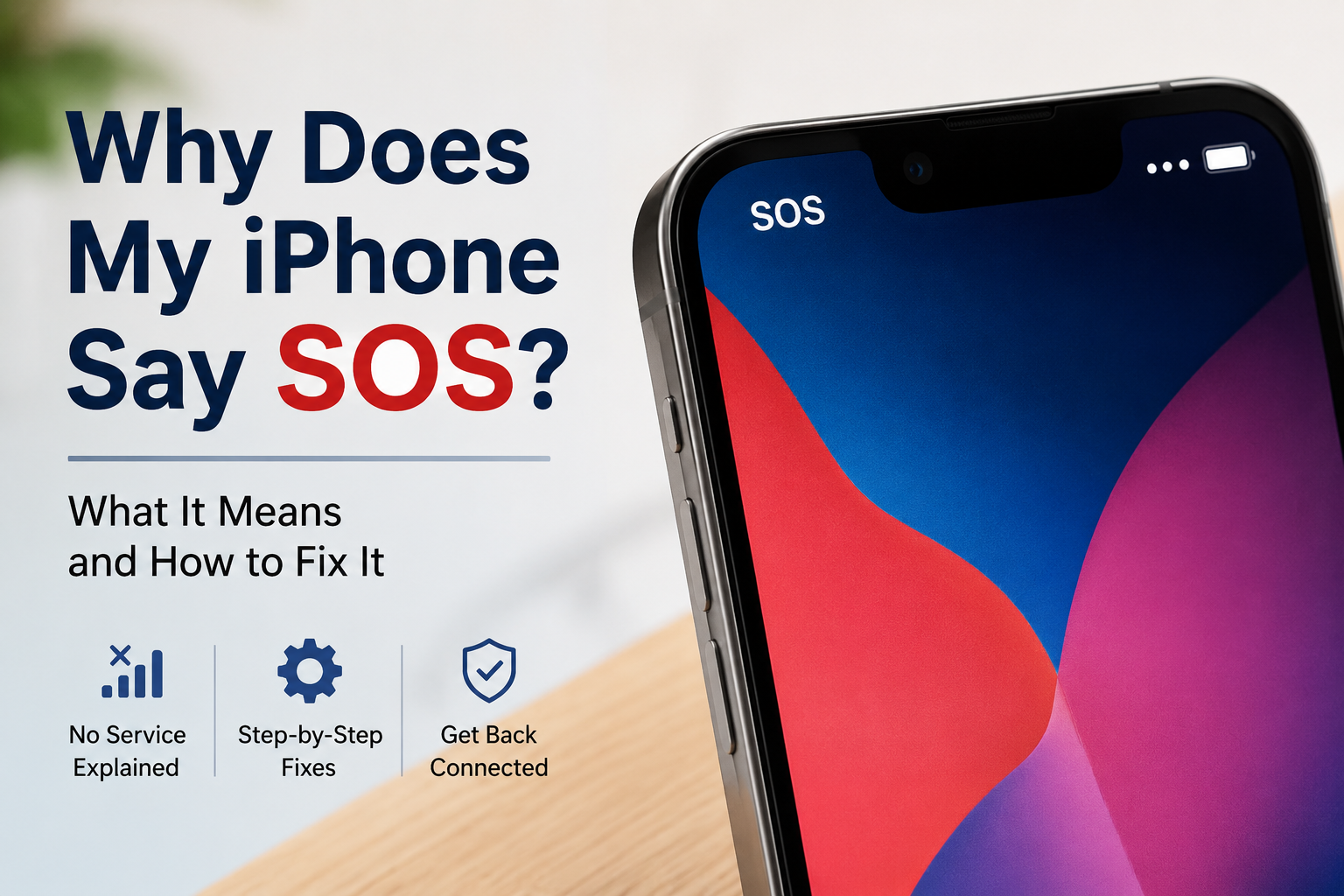
Seeing “SOS” at the top of your iPhone can be worrying, especially if you haven’t seen it before. The good news is that it usually doesn’t mean there’s anything seriously wrong with your phone.
When your iPhone shows SOS or SOS Only, it means your phone isn’t currently connected to your normal cellular network. However, you may still be able to make emergency calls using another available network.
In this guide, we’ll explain why your iPhone may show SOS and walk through the simplest ways to get your normal cellular connection back.
Why Does My iPhone Say SOS?
When your iPhone displays SOS or SOS Only, it usually means it has lost connection to your carrier’s cellular network. This can happen even when the phone itself is working normally.
Common reasons include:
- You’re in an area with poor or no cellular coverage.
- Your carrier is experiencing a temporary outage.
- Airplane Mode or your cellular settings need to reconnect.
- There’s an issue with your SIM or eSIM.
- Your iPhone needs a carrier settings or iOS update.
- You’re traveling outside your carrier’s normal coverage area.
How to Fix SOS on Your iPhone
1. Move to an Area With Better Signal
If you’re inside a building, underground, or in a remote area, your iPhone may simply be unable to reach your carrier’s network.
Try moving outside or to another location and wait a minute to see if the normal signal bars return.
2. Turn Airplane Mode On and Off
This is one of the quickest ways to make your iPhone reconnect to the cellular network.
- Open Control Center.
- Turn Airplane Mode on.
- Wait about 15 seconds.
- Turn Airplane Mode off.
- Give your iPhone a moment to reconnect.
3. Restart Your iPhone
A simple restart can fix temporary network problems.
Turn your iPhone off, wait around 30 seconds, and turn it back on. Check whether SOS disappears after the phone reconnects.
4. Check That Cellular Data Is Turned On
Go to:
Settings → Cellular
Make sure your cellular line is enabled. If you use more than one SIM or eSIM, also make sure the correct line is turned on.
5. Check for a Carrier Settings Update
Connect your iPhone to Wi-Fi and go to:
Settings → General → About
Wait on this screen for a short time. If a carrier settings update is available, your iPhone should give you the option to install it.
Still Seeing SOS?
If the steps above didn’t work, there are a few more things worth checking.
6. Check for an iOS Update
Connect to Wi-Fi and go to:
Settings → General → Software Update
If an update is available, back up your iPhone and install the update.
7. Check Whether Your Carrier Has an Outage
Sometimes the problem isn’t your iPhone at all. Your mobile carrier may be experiencing an outage in your area.
Check your carrier’s official website or support service for reported network problems.
8. Check Your SIM or eSIM
If you recently changed phones, switched carriers, or activated a new cellular plan, there could be an issue with your SIM or eSIM.
If your cellular line is missing or cannot be activated, contact your carrier for help before changing or deleting your eSIM.
9. Reset Network Settings as a Last Resort
If nothing else has worked, you can try resetting your network settings:
Settings → General → Transfer or Reset iPhone → Reset → Reset Network Settings
Important: This removes saved Wi-Fi networks and passwords, cellular settings, and some network-related settings. It does not erase your photos, apps, or other personal content.
Does SOS Mean I Can Still Call 911?
In supported regions, seeing SOS or SOS Only means your iPhone isn’t connected to your normal cellular network but may still be able to make emergency calls through another available network.
If you have a genuine emergency, try calling the local emergency number even if SOS is displayed.
When Should You Contact Your Carrier?
Contact your cellular carrier if SOS continues for a long time while other people nearby have normal service, or if your SIM/eSIM or cellular plan appears to be inactive.
If your carrier confirms that your account and network are working normally, you can then contact Apple Support for additional help.
The Bottom Line
Seeing SOS on your iPhone can look alarming, but in most cases it simply means your phone has temporarily lost its normal cellular connection.
Start with the easy fixes: move to an area with better coverage, toggle Airplane Mode, restart your iPhone, and check your cellular settings. If SOS remains, check for carrier or software issues before resetting network settings.