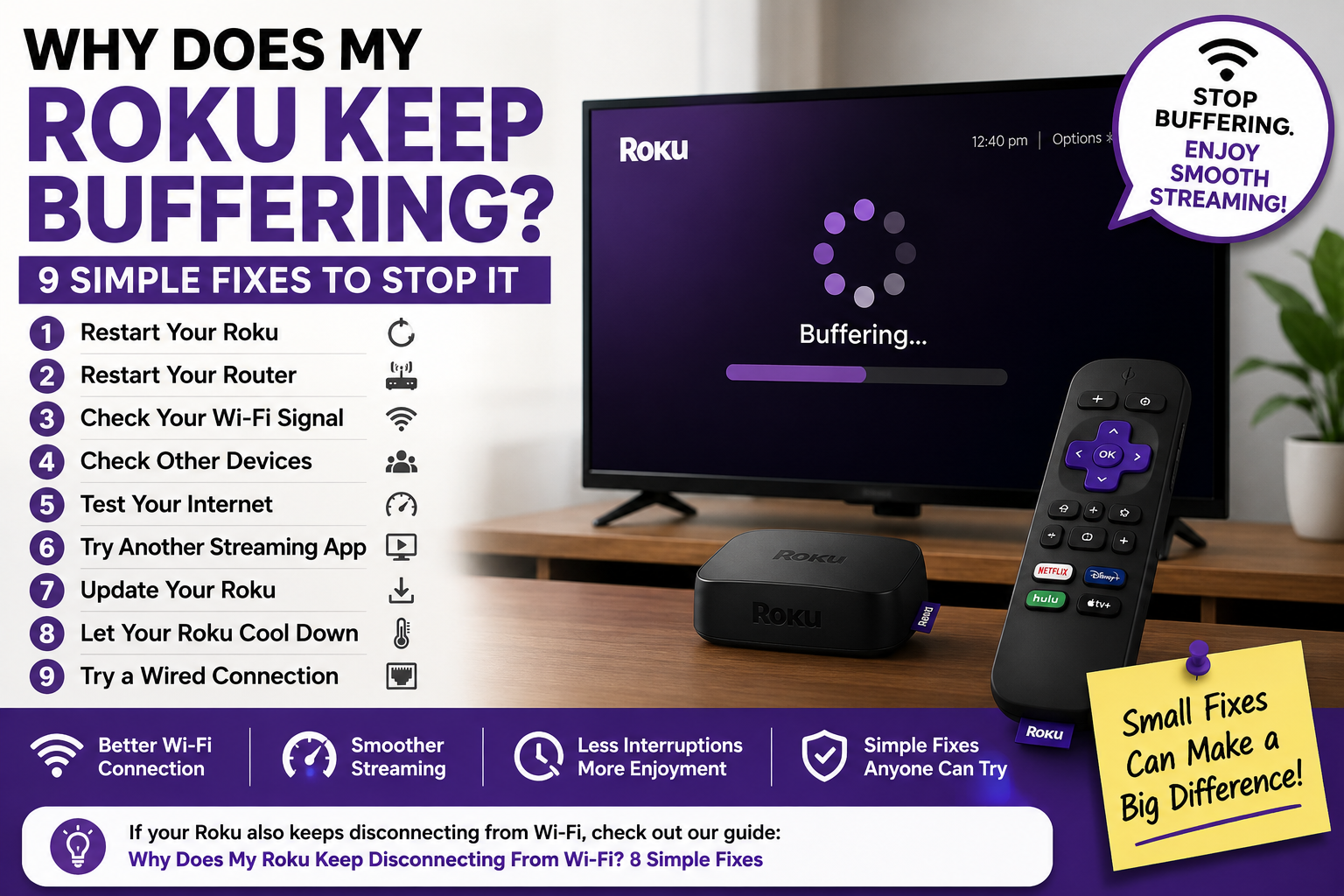
You’re watching a movie or TV show when suddenly the picture freezes and a loading circle appears.
A few seconds of buffering occasionally can be normal. But if your Roku keeps buffering every few minutes, something may be interfering with your connection or streaming performance.
The good news is that you usually don’t need to replace your Roku.
Here are 9 simple fixes to try when your Roku keeps buffering.
1. Restart Your Roku
Start with the easiest solution.
Restarting your Roku can clear temporary problems that may be affecting streaming.
On most Roku devices:
- Go to Settings.
- Select System.
- Select Power.
- Choose System restart.
- Select Restart.
If you don’t see a Power option, look under Settings → System → System restart.
Wait for your Roku to restart, then try streaming again.
2. Restart Your Router
Your Roku depends on your home internet connection.
Even if other devices seem to be working, restarting your router can sometimes resolve temporary network problems.
To do this:
- Unplug your router and modem from power.
- Wait about 30 seconds.
- Plug the modem back in first.
- Wait for it to reconnect.
- Plug the router back in.
- Give the network a few minutes to start.
Then reconnect your Roku and try your show again.
3. Check Your Roku’s Wi-Fi Signal
A weak Wi-Fi signal is one of the most common reasons streaming devices buffer.
On your Roku, go to:
Settings → Network → About
Look for information about your wireless connection and signal strength.
If the signal is weak, try moving the router closer to your Roku if possible.
Large furniture, walls and other obstacles between the Roku and router can weaken the signal.
If your Roku frequently loses its Wi-Fi connection completely, see our related guide:
Why Does My Roku Keep Disconnecting From Wi-Fi? 8 Simple Fixes
4. Check Whether Other Devices Are Using the Internet
Your Roku isn’t necessarily the only device using your internet connection.
Someone else in your home could be:
- Downloading a large game
- Streaming 4K video
- Backing up photos
- Making a video call
- Downloading computer updates
All of these activities can use significant bandwidth.
Try pausing large downloads or streams on other devices and see whether your Roku improves.
5. Test Your Internet Connection
If your Roku keeps buffering, check whether your internet connection itself is running slowly.
Try using a speed-testing service on your phone or computer while connected to the same Wi-Fi network.
If everything in your home seems unusually slow, your Roku may not be the real problem.
You can also try the fixes in our guide:
Why Is My Wi-Fi So Slow? 10 Simple Fixes You Can Try
If your internet remains much slower than expected, contact your internet provider.
6. Try Another Streaming App
Before changing lots of settings, check whether buffering happens everywhere.
For example, if one streaming app keeps buffering, open another app on your Roku.
If other apps stream normally, the problem could be with that particular streaming service rather than your Roku or Wi-Fi.
Streaming services occasionally experience temporary outages or performance problems.
In that situation, waiting and trying again later may be all you need to do.
7. Update Your Roku
Keeping your Roku software updated can help fix bugs and compatibility problems.
Roku normally checks for updates automatically, but you can also check manually.
Go to:
Settings → System → Software update → Check now
If an update is available, allow your Roku to install it.
Afterward, try streaming again.
8. Let Your Roku Cool Down
Streaming devices can become warm during use.
If your Roku is extremely hot, make sure it isn’t:
- Covered by another device
- Trapped inside a closed cabinet
- Sitting directly on another hot electronic device
- Exposed to direct sunlight
Give it some space for ventilation.
If your Roku displays an overheating warning, stop using it and allow it to cool before continuing.
Don’t place it somewhere extremely cold or try to cool it with water.
9. Try a Wired Connection If Your Roku Supports It
Wi-Fi is convenient, but a wired Ethernet connection can sometimes provide a more stable connection.
Some Roku models have an Ethernet port. Certain compatible Roku devices may also support Ethernet through an appropriate adapter.
If your Roku and home setup support a wired connection, connecting it directly to your router may reduce problems caused by weak or unstable Wi-Fi.
This isn’t necessary for everyone, so try the simpler fixes first.
Why Does Roku Buffer Even With Fast Internet?
Having a fast internet plan doesn’t automatically guarantee perfect streaming.
Your Roku can still buffer because of:
- Weak Wi-Fi where the Roku is located
- Network congestion
- Other devices using bandwidth
- Problems with a particular streaming service
- Temporary Roku software problems
- Router issues
The speed advertised by your internet provider is only one part of the equation.
The connection that actually reaches your Roku also matters.
Why Does Roku Buffer Only on One App?
If Netflix, YouTube or other apps work normally but one particular app keeps buffering, your internet connection may be fine.
Try closing and reopening the affected app.
You can also restart your Roku and check for software updates.
If the problem continues only with that service, check whether the streaming provider is experiencing an outage or known problem.
Avoid resetting your entire Roku just because one app temporarily isn’t working.
Do You Need Faster Internet for Roku?
Not necessarily.
Different streaming resolutions require different amounts of internet bandwidth. Higher-quality video, especially 4K, generally requires a faster and more stable connection than standard-definition video.
But upgrading your internet plan won’t necessarily fix poor Wi-Fi coverage.
If your Roku works well when the router is nearby but buffers when it’s farther away, improving your Wi-Fi coverage may be more useful than buying a faster internet plan.
Should You Factory Reset Your Roku?
A factory reset should not be your first solution for buffering.
It removes settings from the Roku and requires you to set the device up again.
Try restarting the Roku, checking your Wi-Fi, restarting your router, testing other apps and installing updates first.
If you’re considering a factory reset because nothing else has worked, check Roku’s official support instructions for your particular device before proceeding.
The Bottom Line
If your Roku keeps buffering, start with the simple fixes.
Restart your Roku and router, check the Wi-Fi signal, pause heavy internet activity on other devices and test another streaming app.
If your Roku also regularly disconnects from Wi-Fi, troubleshoot the wireless connection itself rather than treating buffering as a separate problem.
In many cases, you can improve Roku streaming without buying a new device or upgrading your internet plan.