A slow computer can make even simple tasks frustrating. Programs take longer to open, websites feel sluggish, and sometimes the computer seems to freeze for no obvious reason.
The good news is that a slow computer doesn’t always mean you need to replace it.
Sometimes the problem is caused by too many programs running, low storage space, pending updates, or something that can be fixed in just a few minutes.
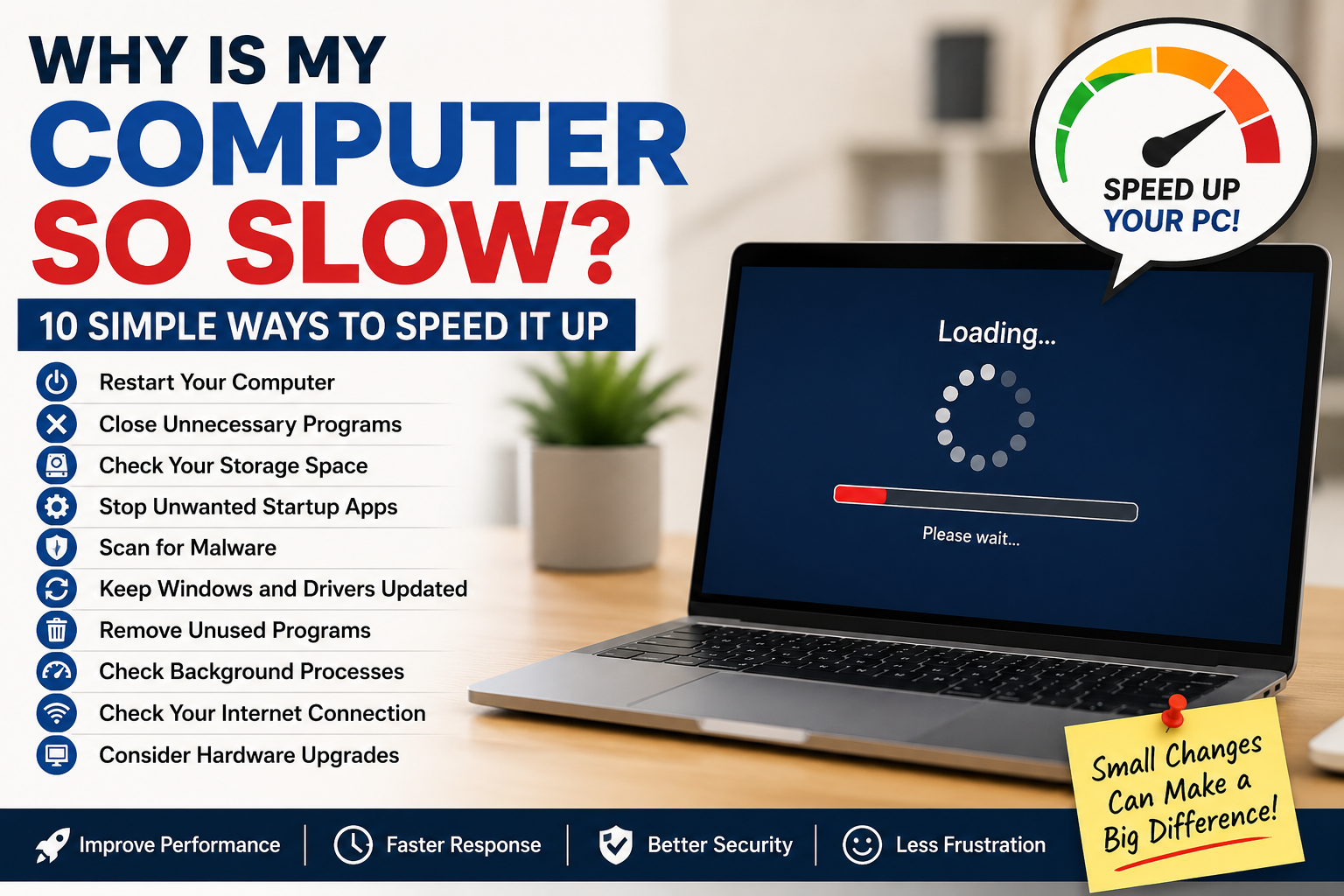
Here are 10 simple things to try when your Windows computer is running slowly.
1. Restart Your Computer
If you normally leave your computer running or simply close the laptop lid, start with a full restart.
Restarting closes programs running in the background and clears temporary processes that may be slowing things down.
On Windows:
- Click the Start button.
- Click Power.
- Choose Restart.
After your computer starts again, check whether it feels faster.
2. Close Programs You Aren’t Using
Having many programs open at the same time can use a lot of your computer’s memory.
Look at the taskbar at the bottom of your screen and close programs you don’t currently need.
Don’t forget about browser tabs either.
Having dozens of Chrome, Edge, or Firefox tabs open can use a surprising amount of memory.
Close tabs you’re finished with and see whether performance improves.
3. Check Your Storage Space
Computers can become slower when their storage drive is nearly full.
On Windows 11:
- Open Settings.
- Select System.
- Select Storage.
Windows will show you how much storage is being used.
If you’re running low on space, consider removing files you no longer need, uninstalling unused programs, or moving large photos and videos to another trusted storage location.
Be careful not to delete files if you aren’t sure what they are.
4. Stop Unnecessary Apps From Starting Automatically
Some programs automatically start every time you turn on your computer.
You may not even realize they’re running.
On Windows 11:
- Open Settings.
- Select Apps.
- Select Startup.
- Review the list of apps.
You can turn off startup for programs you recognize and don’t need immediately after signing in.
Avoid disabling security software or anything you don’t recognize without checking what it does first.
5. Install Windows Updates
Windows updates can include bug fixes, security improvements and performance improvements.
To check:
- Open Settings.
- Select Windows Update.
- Click Check for updates.
If updates are available, allow them to install.
Your computer may need to restart afterward.
6. Scan for Malware
Malicious software can sometimes cause a computer to become unusually slow.
Windows includes built-in security protection called Windows Security.
To run a scan:
- Search for Windows Security from the Start menu.
- Open Virus & threat protection.
- Choose Quick scan.
If Windows Security finds something suspicious, follow the recommended actions.
Be cautious with websites claiming that your computer has hundreds of problems and asking you to download a “PC cleaner.” Some of these programs can create more problems than they solve.
7. Find Out What’s Using Your Computer’s Resources
If your computer suddenly becomes slow, you can use Task Manager to see what’s using its resources.
Press:
Ctrl + Shift + Esc
Task Manager will open.
Look at the CPU, Memory and Disk columns.
If one program is consistently using a large amount of resources, it could be contributing to the slowdown.
Don’t end unfamiliar Windows processes just because their numbers look high. Search for information about the process first or restart the computer if you’re unsure.
8. Remove Programs You No Longer Use
Old programs can take up storage space, and some may continue running services in the background.
To review installed programs:
- Open Settings.
- Select Apps.
- Select Installed apps.
Look through the list and uninstall programs you know you no longer need.
Again, don’t remove something if you aren’t sure what it does.
9. Check Whether the Internet Is Actually the Problem
Sometimes a computer feels slow when the computer itself is perfectly fine.
If websites load slowly or videos keep buffering, your internet or Wi-Fi connection might be the real problem.
Try opening programs that don’t require the internet.
If those programs work normally but websites are slow, troubleshoot your Wi-Fi before replacing or repairing the computer.
Related: Why Is My Wi-Fi So Slow? 10 Simple Fixes You Can Try
10. Check the Age of Your Computer
If you’ve tried everything above and your computer is still consistently slow, its hardware may simply be struggling with modern software.
Older computers may have:
- Limited memory (RAM)
- Slow storage drives
- Older processors
- Hardware that no longer handles modern programs comfortably
That doesn’t automatically mean you need a new computer.
For some older PCs, upgrading from a traditional hard drive to an SSD or adding more RAM can make a major difference.
Before buying upgrades, check whether your particular computer supports them.
Why Did My Computer Suddenly Become Slow?
If your computer was working normally and suddenly became slow, think about what changed recently.
For example:
- Did Windows install an update?
- Did you install a new program?
- Is a large file downloading?
- Is your storage almost full?
- Are many browser tabs open?
- Is a virus scan or backup running?
Temporary background tasks can sometimes slow a computer down and then finish on their own.
If the problem continues after restarting, work through the steps above.
Should You Use a PC Cleaner or Speed Booster?
Be careful.
You may see advertisements for programs promising to “clean,” “boost,” or “speed up” your computer with one click.
Windows already includes many of the tools most people need for basic maintenance.
Avoid installing unfamiliar optimization programs just because a pop-up says your computer has thousands of errors.
In particular, don’t give an unknown program payment information or administrator access simply because it claims your computer needs urgent repairs.
When Should You Get Professional Help?
Consider getting help if your computer:
- Frequently crashes
- Won’t start normally
- Makes unusual physical noises
- Shows repeated error messages
- Becomes extremely hot
- Remains very slow after basic troubleshooting
If you have important photos, documents or other files on the computer, make sure they’re backed up before major repairs or hardware changes.
The Bottom Line
You don’t necessarily need a new computer just because yours has become slow.
Start with the easiest fixes: restart it, close programs you aren’t using, check your storage, reduce unnecessary startup apps and install updates.
If only websites and online videos are slow, remember that the problem may actually be your Wi-Fi rather than your computer.