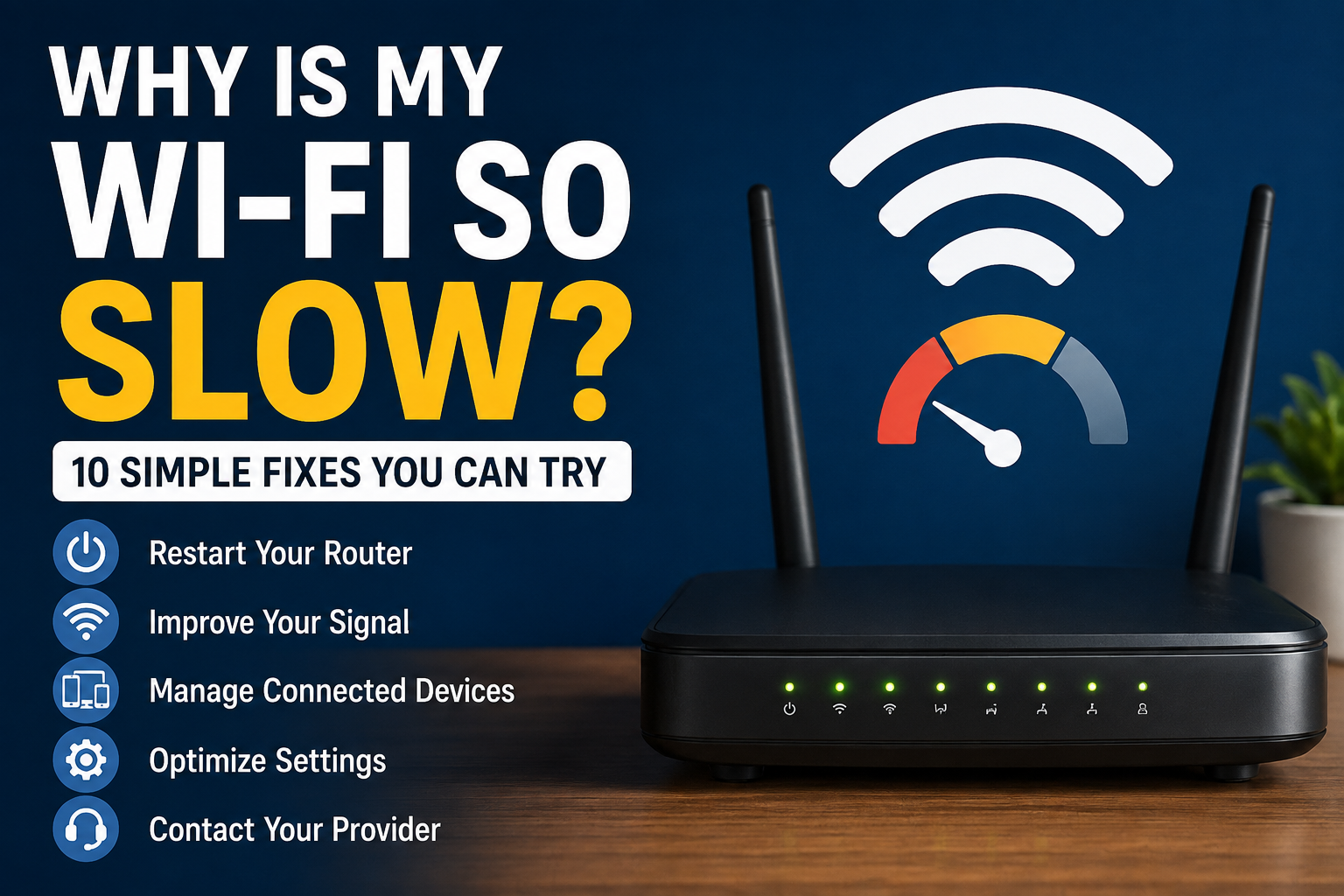
Few things are more frustrating than slow Wi-Fi. A website takes forever to load, a video keeps buffering, or a video call suddenly freezes.
The good news is that slow Wi-Fi doesn’t always mean you need a new router or a faster internet plan.
Often, a few simple changes can make a noticeable difference.
Here are 10 easy things to try when your Wi-Fi is running slowly.
1. Restart Your Router and Modem
This is one of the simplest fixes, but it’s also worth trying first.
Your router can occasionally develop temporary connection problems, especially if it has been running continuously for weeks or months.
To restart it:
- Unplug your router and modem from power.
- Wait about 30 seconds.
- Plug the modem back in first.
- Wait for it to reconnect.
- Plug your router back in.
- Give everything a few minutes to start up.
Then try using the internet again.
2. Move Closer to Your Router
Wi-Fi signals become weaker as you move farther away from the router.
Walls, floors, furniture and other obstacles can also reduce signal strength.
Try using your phone or computer closer to the router.
If your internet suddenly becomes much faster, the problem may be Wi-Fi coverage rather than your internet connection itself.
3. Check Your Internet Speed
Before changing too many settings, check how fast your connection actually is.
You can use an internet speed-testing service on your phone or computer.
Compare the result with the internet speed you’re paying your provider for.
Don’t worry if the numbers aren’t exactly the same. Wi-Fi speeds can vary depending on your device, distance from the router and network conditions.
However, if you’re consistently getting dramatically slower speeds, there may be a problem worth investigating.
4. Disconnect Devices You Aren’t Using
Your Wi-Fi connection is shared between connected devices.
That might include:
- Phones
- Tablets
- Computers
- Smart TVs
- Streaming devices
- Security cameras
- Smart speakers
- Game consoles
Normally this isn’t a problem. But several devices downloading files, streaming high-quality video or updating at the same time can slow things down.
Pause large downloads or disconnect devices you don’t currently need and see whether your connection improves.
5. Move Your Router to a Better Location
Where your router sits can make a surprisingly big difference.
For better coverage, try placing your router:
- In a central area of your home
- In an open location
- Off the floor
- Away from thick walls
- Away from large metal objects
Avoid hiding your router inside a cabinet if possible.
A more open location can help its Wi-Fi signal reach more of your home.
6. Try the Other Wi-Fi Band
Many modern routers provide 2.4 GHz and 5 GHz Wi-Fi.
They have different advantages.
2.4 GHz generally reaches farther and travels through walls better, but it can be slower and more crowded.
5 GHz can provide faster speeds at shorter distances, but its signal doesn’t travel as far.
If you’re close to your router, try connecting to the 5 GHz network if your router and device support it.
If you’re farther away, 2.4 GHz may provide a more reliable connection.
Some newer routers manage these bands automatically, so you may not see separate network names.
7. Restart the Device That’s Running Slowly
Sometimes your Wi-Fi isn’t actually the problem.
If every other device works normally but your phone, tablet or computer is slow, restart that device.
A restart can clear temporary software or networking problems.
After restarting, reconnect to Wi-Fi and test it again.
8. Check for Background Downloads and Updates
Devices can use a lot of internet bandwidth without making it obvious.
For example, your computer might be downloading a large system update while you’re trying to watch a movie.
Cloud backups, game downloads, app updates and photo syncing can also consume bandwidth.
Check your devices for large downloads or updates and let them finish—or pause them temporarily.
9. Update Your Router and Devices
Software updates can sometimes improve performance, reliability and security.
Check whether your phone, computer or tablet has pending updates.
Some routers update themselves automatically. Others may require you to use the manufacturer’s app or router settings page.
If you’re unsure how to update your router, check the instructions provided by its manufacturer or your internet provider rather than changing unfamiliar settings.
10. Contact Your Internet Provider
If you’ve tried everything above and all of your devices are still experiencing slow internet, the problem may be outside your home.
Your internet provider may be experiencing an outage, line problem or another service issue.
Contact your provider and ask them to check your connection.
You can also tell them the results of your internet speed test. This can make troubleshooting easier.
Is It Your Wi-Fi or Your Internet Connection?
These two problems can look very similar.
If your internet works well near the router but becomes slow in another room, you probably have a Wi-Fi coverage problem.
If the connection is slow on multiple devices even when you’re close to the router, the problem could be with your internet service, modem or router.
Testing from different devices and locations around your home can help narrow it down.
Should You Buy a New Router?
Not immediately.
Try the fixes above first.
However, replacing your router may be worth considering if it’s very old, frequently disconnects, doesn’t provide enough coverage for your home, or no longer receives security updates from its manufacturer.
For larger homes, a mesh Wi-Fi system can also help improve coverage in rooms that are far from the main router.
The Bottom Line
When your Wi-Fi becomes slow, start with the easy fixes.
Restart your router, move closer to it, check your internet speed and see whether other devices are using the connection heavily.
In many cases, that’s enough to identify the problem without buying new equipment or upgrading your internet plan.
3 thoughts on “Why Is My Wi-Fi So Slow? 10 Simple Fixes You Can Try”